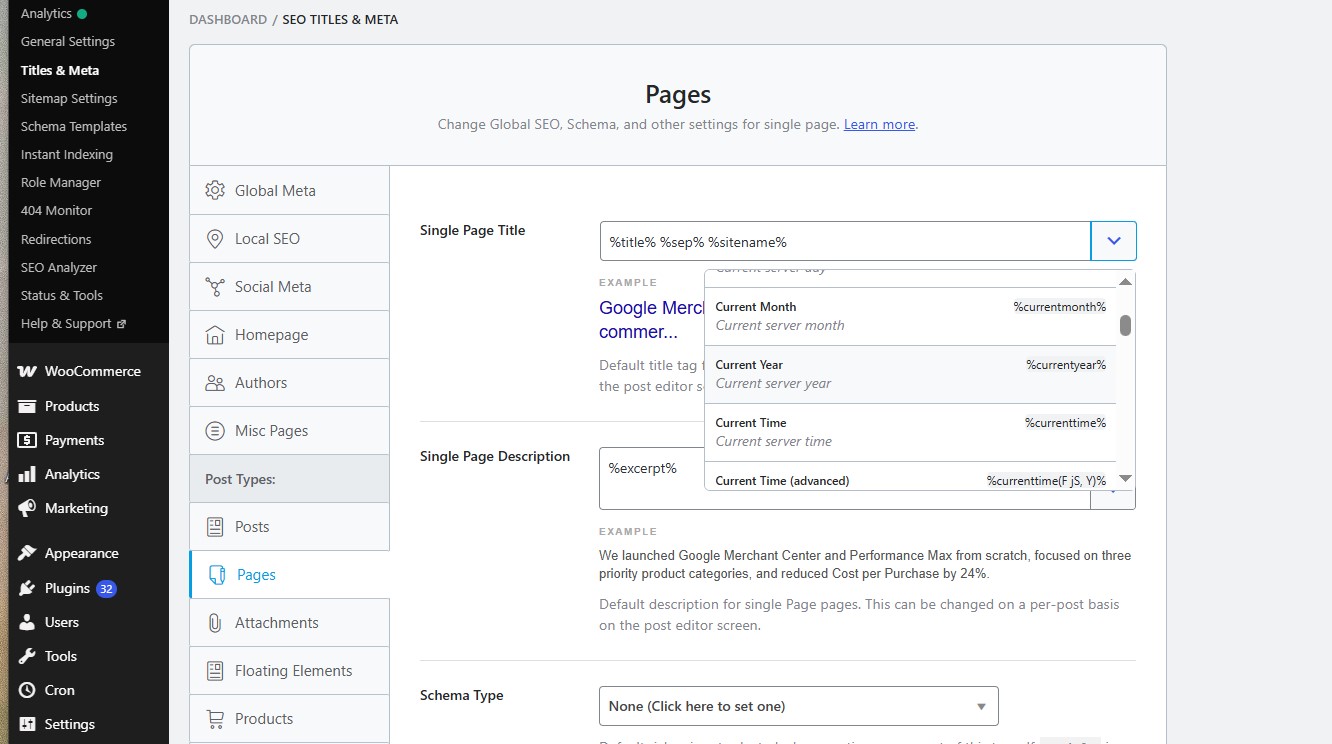
A meta description is a short HTML description of a webpage that search engines can use when displaying that page in search results. It usually appears under the SEO title and URL in Google, although Google may sometimes generate its own snippet based on the user’s search query and the content of the page.
A well-written meta description helps users understand what the page is about before they click. It does not guarantee higher rankings by itself, but it can influence how attractive your search result looks and may improve click-through rate.
In WordPress, there is no single universal place where the meta description is edited. The exact location depends on:
which SEO plugin is installed;
whether you are editing a page, post, product, category, or another content type;
whether the meta description is set manually for one page or generated automatically from a template.
The most common WordPress SEO plugins are Yoast SEO and Rank Math, and both provide dedicated fields for SEO titles and meta descriptions.
Below, we explain where to find the meta description in each case.
Where Is the Meta Description in Yoast SEO?
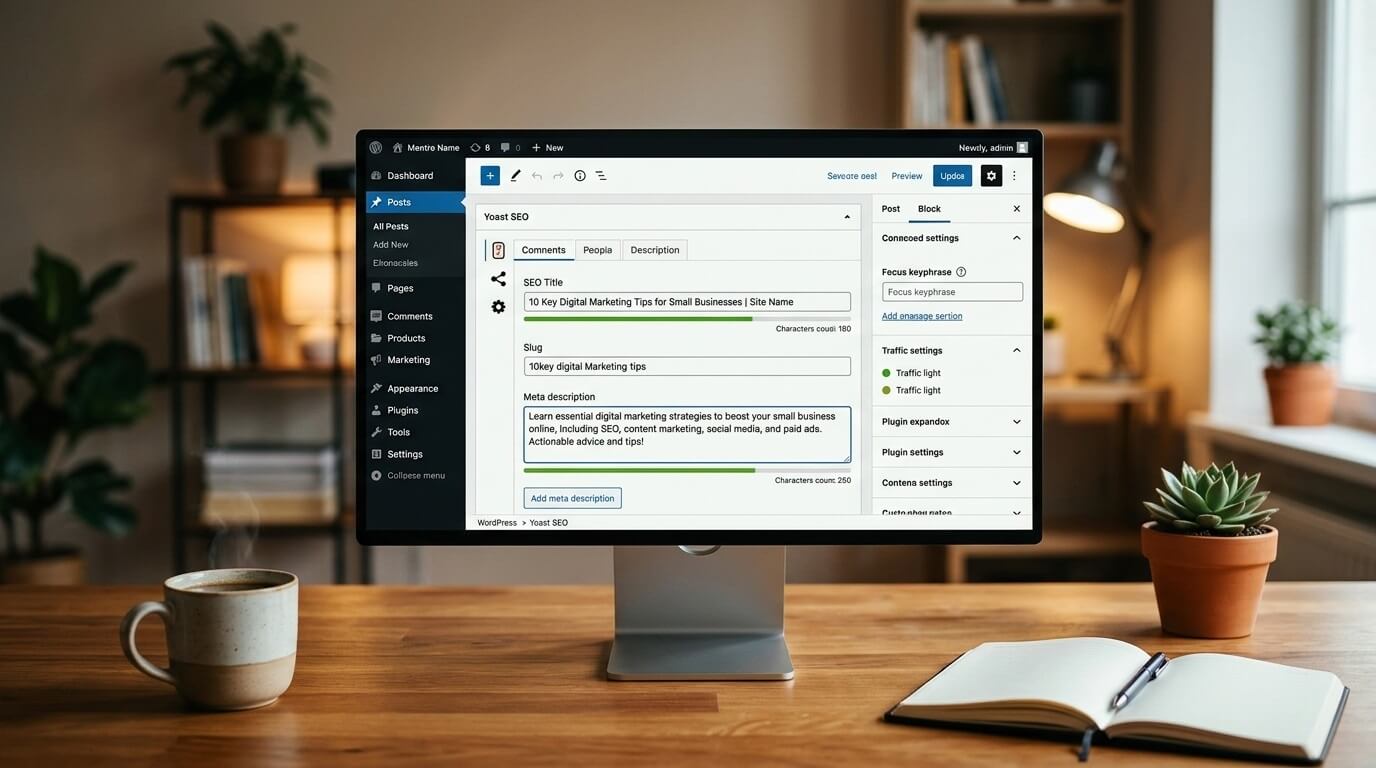
If your WordPress website uses Yoast SEO, open the page, post, product, or other content item you want to edit. Inside the WordPress editor, find the Yoast SEO section. Depending on your WordPress setup, it may appear:
below the main content editor;
in the right-hand sidebar;
inside the Yoast SEO panel.
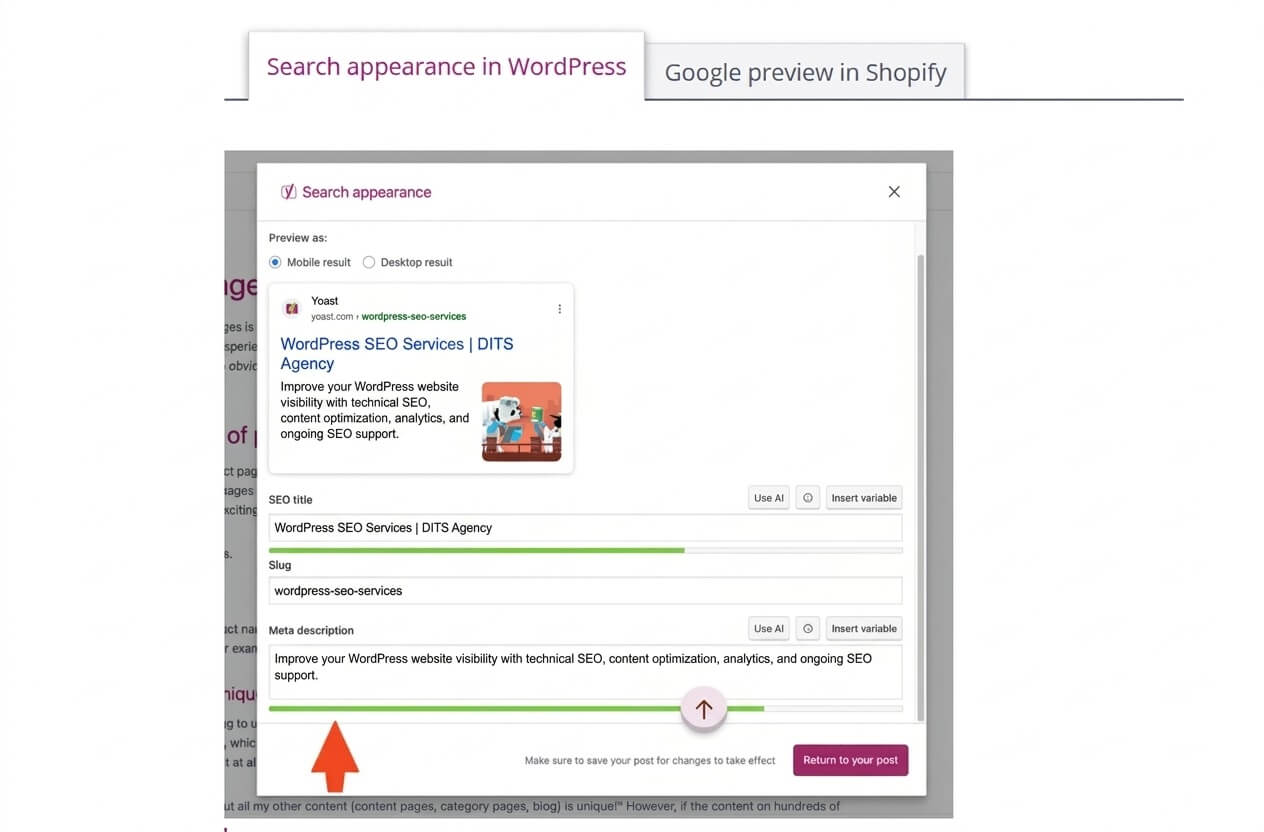
Open the Google preview / Search appearance section.
There you can edit:
SEO title;
slug;
meta description.
The Meta description field is where you can write a custom description for that specific page. For example:
SEO Title: WordPress SEO Services | DITS Agency
Meta Description: Improve your WordPress website visibility with technical SEO, content optimization, analytics, and ongoing SEO support.
If the field is empty, Yoast may use a default template or Google may generate its own snippet from the page content.
How to Set Default Meta Descriptions in Yoast SEO
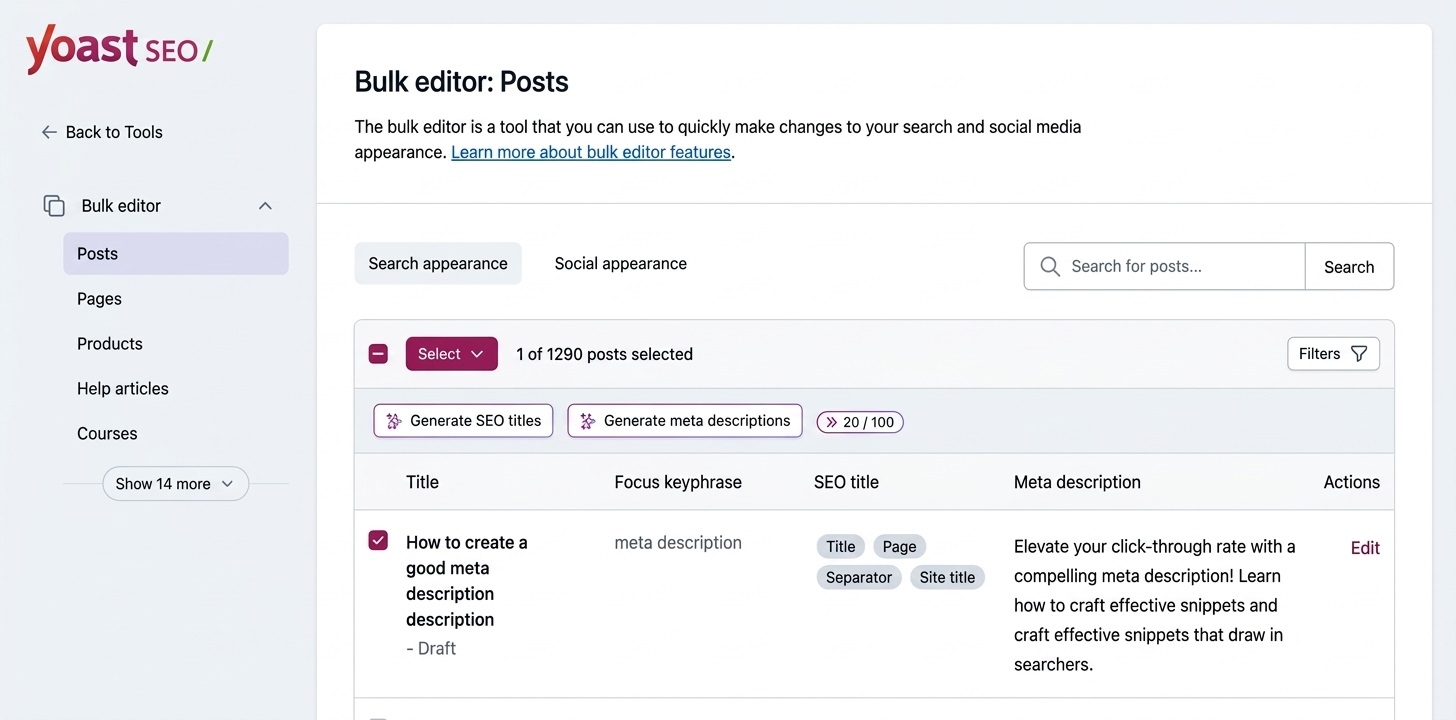
You do not always need to write every meta description manually. Yoast SEO allows you to create default templates for different types of content.
Go to:
Yoast SEO → Settings → Content Types
Depending on your website, you may see sections for:
Posts;
Pages;
Products;
Categories;
Product categories;
Custom post types.
Here you can define default SEO title structures and other search appearance settings. This is especially useful for large websites and ecommerce stores where creating every meta tag manually would take too much time. However, important landing pages, service pages, product categories, and high-priority products usually benefit from individually written meta descriptions.
Where Is the Meta Description in Rank Math?
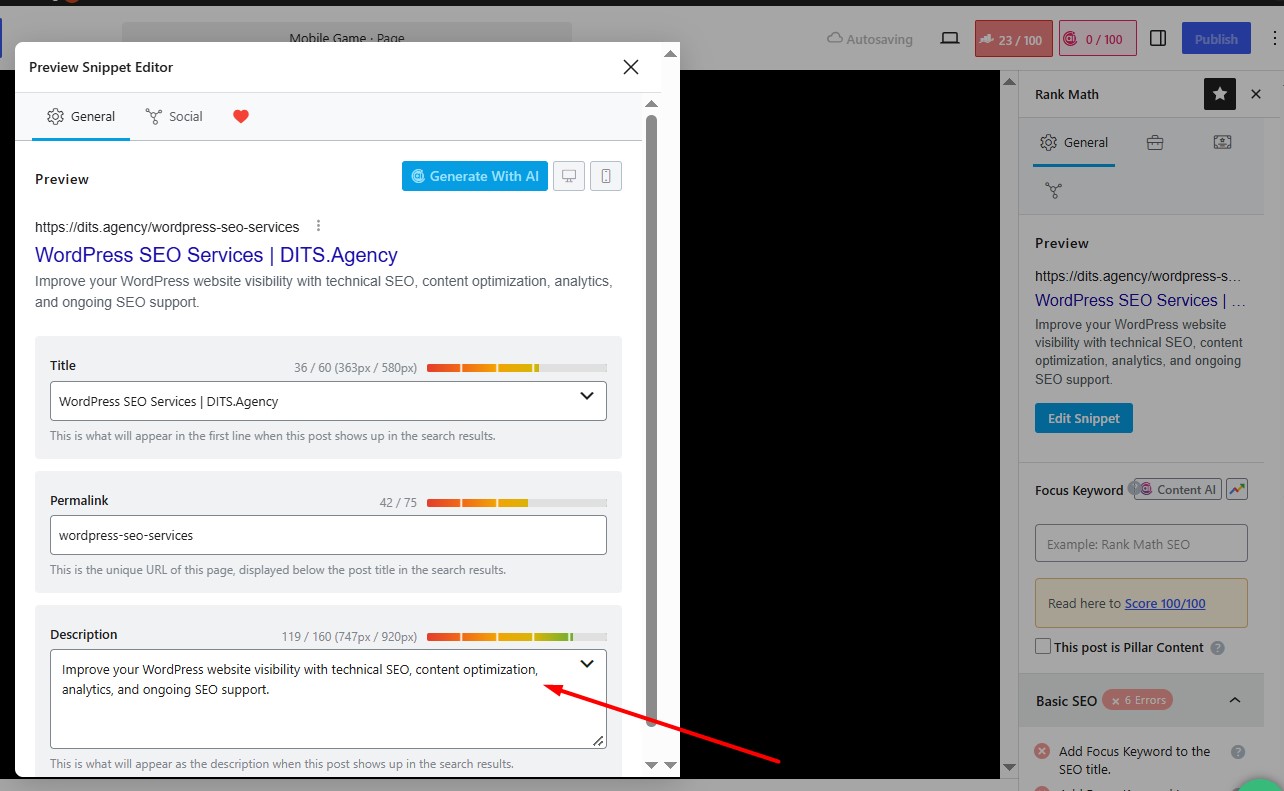
If your website uses Rank Math, open the page, post, or product you want to optimize. Open the Rank Math SEO panel in the WordPress editor. Then open the Edit Snippet section.
You will normally see fields for:
SEO Title;
Permalink;
Description.
The Description field is the page’s meta description. You can enter your own text and use the preview to see approximately how the search result may appear. For example:
Title: WooCommerce Development Services | DITS Agency
Description: Custom WooCommerce development, integrations, payment systems, performance optimization, and ecommerce solutions for growing businesses.
How to Set Meta Description Templates in Rank Math
Rank Math also allows you to configure default templates.
Go to:
Rank Math SEO → Titles & Meta
From here, you can configure SEO settings for:
posts;
pages;
products;
categories;
product categories;
tags;
custom post types.
This is useful when your website contains hundreds or thousands of URLs. For example, an ecommerce store may create a basic template for product pages and then manually optimize only the most important products and categories.
Where Is the Meta Description in WooCommerce?
WooCommerce itself does not provide a dedicated SEO meta description field.
If you use WooCommerce together with Yoast SEO, Rank Math, or another SEO plugin, the meta description is usually edited directly inside the product or product category editor.
For a product:
Products → Edit Product → SEO Plugin Section → Meta Description
For a product category:
Products → Categories → Edit Category → SEO Settings
The exact interface depends on the SEO plugin installed.
For ecommerce websites, it is particularly important to review meta descriptions for:
main product categories;
high-priority products;
brand pages;
important filter or landing pages;
seasonal collections.
What If You Don’t Have an SEO Plugin?
By default, WordPress does not offer a simple dedicated SEO meta description field for every page and post.
Without an SEO plugin, the meta description may need to be added through:
theme functionality;
custom code;
custom fields;
another SEO or metadata plugin.
For most business websites, using a dedicated SEO plugin is easier and safer.
Common options include:
Yoast SEO;
Rank Math;
All in One SEO.
These plugins also help manage other SEO elements such as titles, canonical URLs, XML sitemaps, robots directives, and schema settings.
How Can You Check the Current Meta Description?
There are several ways to check whether a page already has a meta description and which version is actually being used on the live website.
1. Check the SEO Plugin
Open the page, post, product, or category in WordPress and review the SEO description field in Yoast SEO, Rank Math, or another SEO plugin.
This is the easiest way to see what meta description has been entered manually for that page.
However, keep in mind that the value shown in the plugin is not always the final version that appears in the HTML.
For example, the website may use:
a global meta description template;
dynamic variables;
custom theme settings;
another SEO plugin;
custom code that modifies the output.
That is why it is useful to check the live page as well.
2. Check the Page Source
Open the live page in your browser. Right-click and select:
View Page Source
Then search for: meta name=”description”
You should see something similar to: <meta name=”description” content=”Your page description here”>
This is the actual meta description currently being output in the HTML of the page.
Checking the source is especially useful when:
the description in the SEO plugin does not seem to update;
several SEO plugins have been installed;
a theme or custom code may be generating metadata;
you are using automatic templates;
you want to confirm that the correct description is visible to search engines.
If you find more than one meta description tag in the source, this may indicate a technical SEO issue. Ideally, a page should output one clear meta description.
3. Check the Search Result in Google
You can also search for the page in Google and review the text shown below the title. However, the snippet displayed in Google may be different from the meta description set in WordPress. Google may generate its own snippet from the page content when it believes another section is more relevant to the user’s search query. Because of this, checking Google alone is not enough to confirm which meta description is actually configured on the website. The best approach is to compare:
WordPress SEO plugin → Page source → Google search result
This helps you understand whether the meta description is configured correctly and whether Google is choosing to display it.
Why Is My Meta Description Not Showing in Google?
This is normal. Even if you set a custom meta description in WordPress, Google may decide to display another snippet.
This can happen when:
the description does not match the search query well;
the description is too generic;
Google finds a more relevant passage on the page;
the page has recently been updated and has not yet been recrawled;
the description is duplicated across many pages.
The meta description should therefore be written as a useful summary of the page, not simply as a place to insert keywords.
How Long Should a WordPress Meta Description Be?
There is no fixed character limit that guarantees Google will display the full description. As a practical guideline, many SEO specialists aim for approximately 140–160 characters, but relevance is more important than hitting an exact number. A good meta description should:
clearly explain what the page offers;
include the main topic naturally;
match user intent;
avoid keyword stuffing;
be unique for important pages;
encourage the user to click.
Should Every WordPress Page Have a Meta Description?
Not necessarily. The most important pages should usually have carefully written descriptions, especially:
homepage;
service pages;
main landing pages;
product categories;
important product pages;
key blog articles.
For low-value archive pages, tags, internal search pages, or other secondary URLs, manually writing a description may not be necessary. The priority should be pages that you actually want users to discover through search.
Need Help With WordPress SEO?
DITS.Agency has extensive experience with WordPress, WooCommerce, technical SEO, analytics, and search optimization.
Whether you need a one-time SEO audit, ongoing WordPress SEO support, or a dedicated AI SEO and GEO strategy, our team can review your current setup and recommend the next steps based on your website and business goals.
Contact DITS.Agency to discuss your WordPress SEO or AI Search Optimization project.
To provide the best experiences, we use technologies like cookies to store and/or access device information. Consenting to these technologies will allow us to process data such as browsing behavior or unique IDs on this site. Not consenting or withdrawing consent, may adversely affect certain features and functions.
Functional
Always active
The technical storage or access is strictly necessary for the legitimate purpose of enabling the use of a specific service explicitly requested by the subscriber or user, or for the sole purpose of carrying out the transmission of a communication over an electronic communications network.
Preferences
The technical storage or access is necessary for the legitimate purpose of storing preferences that are not requested by the subscriber or user.
Statistics
The technical storage or access that is used exclusively for statistical purposes.The technical storage or access that is used exclusively for anonymous statistical purposes. Without a subpoena, voluntary compliance on the part of your Internet Service Provider, or additional records from a third party, information stored or retrieved for this purpose alone cannot usually be used to identify you.
Marketing
The technical storage or access is required to create user profiles to send advertising, or to track the user on a website or across several websites for similar marketing purposes.