


Table of Contents
ToggleManaging a WooCommerce online store involves much more than adding products once. Product prices change, stock levels need regular updates, and suppliers frequently provide new product information. If your store has hundreds or thousands of products, keeping everything up to date can become a time-consuming task.
Each product needs a name, SKU, price, specifications, images, and a description. Entering this information manually takes time, especially when you’re working with large catalogs or multiple suppliers.
One way to simplify this process is to import WooCommerce products directly from Google Sheets and use the same spreadsheet to manage future updates.
At DITS.Agency, we developed WooCommerce Product Import with AI from Sheets, a WordPress plugin that helps store owners import products in bulk, update existing listings, manage product images, and generate descriptions with AI.
In this guide, we’ll explain how the plugin works, how to import and update WooCommerce products using Google Sheets, and how its AI integration can help you create product descriptions in different languages.
Why Use Google Sheets for WooCommerce Product Management?
Google Sheets provides a convenient way to organize and manage product information in one place.
Instead of opening individual WooCommerce product pages to update prices, stock quantities, or specifications, you can prepare the information in a spreadsheet and import it into your store.
This is particularly useful when you’re working with supplier price lists or regularly adding new products to your catalog.
For example, a supplier may provide a spreadsheet containing several hundred products, including SKUs, names, prices, sizes, and image links. Rather than transferring each value manually, you can use the spreadsheet as the source for your WooCommerce product import.
Google Sheets can also be used for ongoing product management. When prices or stock levels change, you update the relevant information in the spreadsheet and synchronize it with WooCommerce.
This approach helps reduce repetitive work and makes managing larger product catalogs more practical.
WooCommerce Product Import with AI from Sheets: Main Features
To simplify WooCommerce catalog management, we developed the WooCommerce Product Import with AI from Sheets plugin.
It combines bulk product importing, product updates, image management, and AI-powered content generation in one solution.
The plugin allows you to:
- Import WooCommerce products in bulk from Google Sheets.
- Import simple and variable products, including attributes and variations.
- Map spreadsheet columns to WooCommerce product fields.
- Upload product images using direct URLs or Google Drive.
- Update existing products by SKU, ID, or another configured identifier.
- Update selected fields, such as prices and stock levels, without replacing other product information.
- Generate and improve product descriptions using OpenAI.
- Create AI product descriptions in different languages.
- Connect multiple Google Sheets and schedule automatic updates with the PRO version.
The main advantage is that you can manage product information through Google Sheets instead of manually editing every product in WordPress.
AI description generation adds another useful capability, particularly for stores that need to create content for large numbers of products.
How to Install WooCommerce Product Import with AI from Sheets
The plugin is installed through the WordPress dashboard, just like other WordPress plugins.
First, visit the DITS Agency website and open the WooCommerce Product Import with AI from Sheets plugin page. Choose the Free or PRO version and download the installation ZIP file.
Then follow these steps:
- Log in to your WordPress dashboard.
- Go to Plugins, then Add New Plugin, then Upload Plugin.
- Select the downloaded ZIP file.
- Click Install Now.
- After installation, click Activate Plugin.
Once the plugin is activated, open its settings to configure your Google Sheets product import.
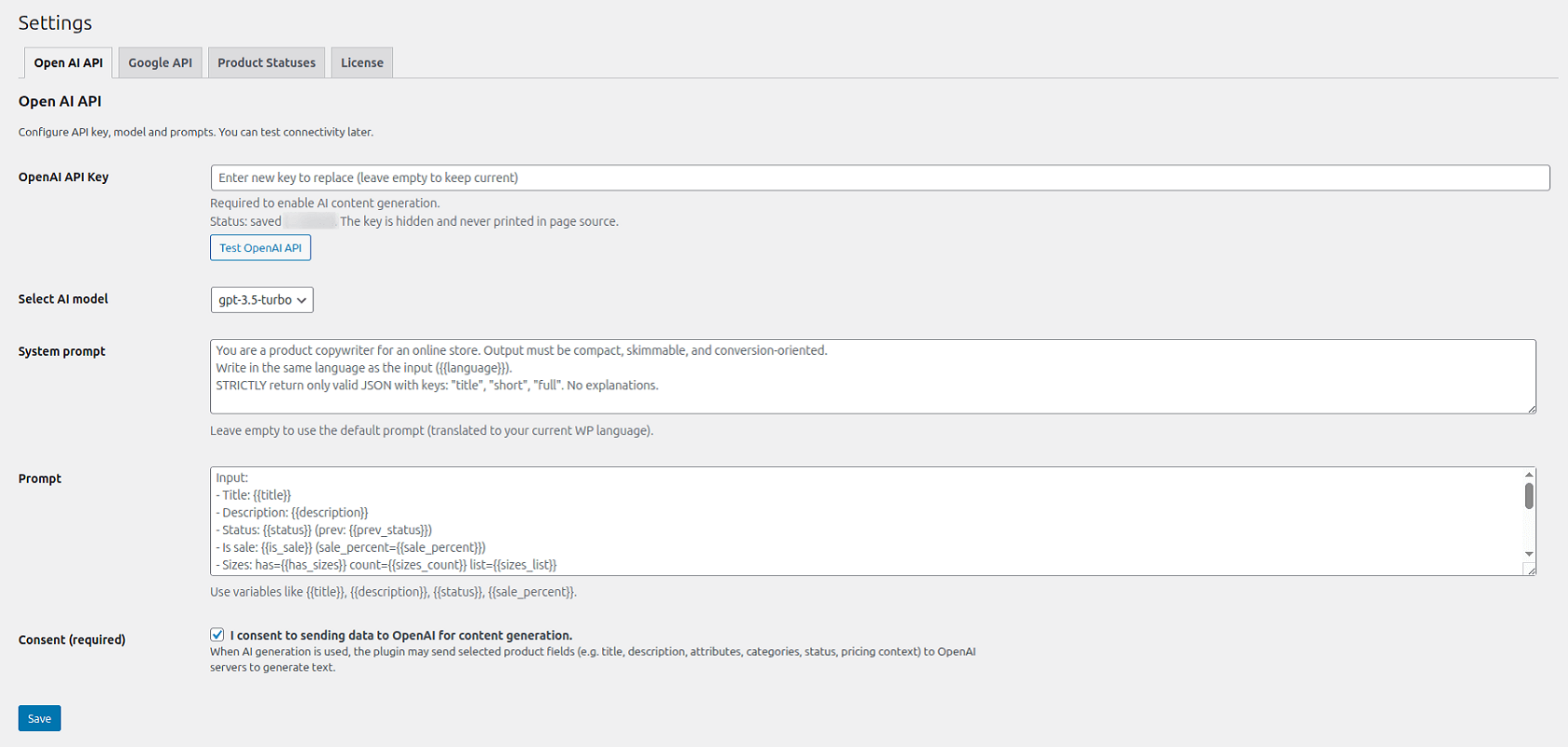
If you also want to generate product descriptions with AI, you’ll need to connect OpenAI separately.
How to Import WooCommerce Products from Google Sheets
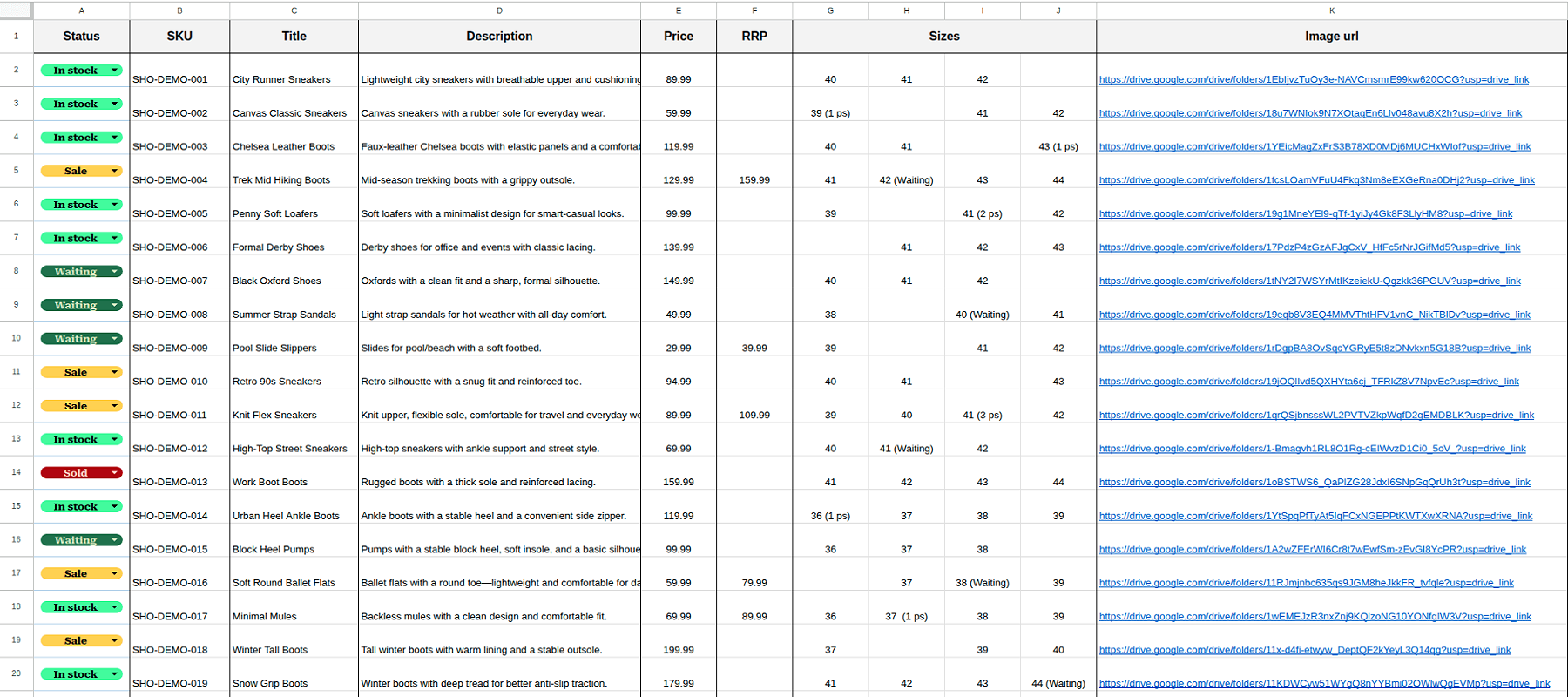
The import process starts with a Google Sheet containing the product information you want to add to WooCommerce.
Step 1. Prepare Your Google Sheets Product Data
Each row in the spreadsheet represents a product, while columns contain the information required to create or update its WooCommerce listing.
For example, your spreadsheet might look like this:
SKU | Product Name | Price | Stock | Color | Size |
TSH-001 | Cotton T-Shirt | 19.99 | 25 | Black | M |
TSH-002 | Cotton T-Shirt | 19.99 | 18 | White | L |
BAG-001 | Travel Bag | 49.00 | 12 | Navy | One Size |
You can also include product descriptions, specifications, attributes, and image URLs.
Before importing, make sure the information is accurate and the columns are organized consistently.
Step 2. Connect Google Sheets to WooCommerce
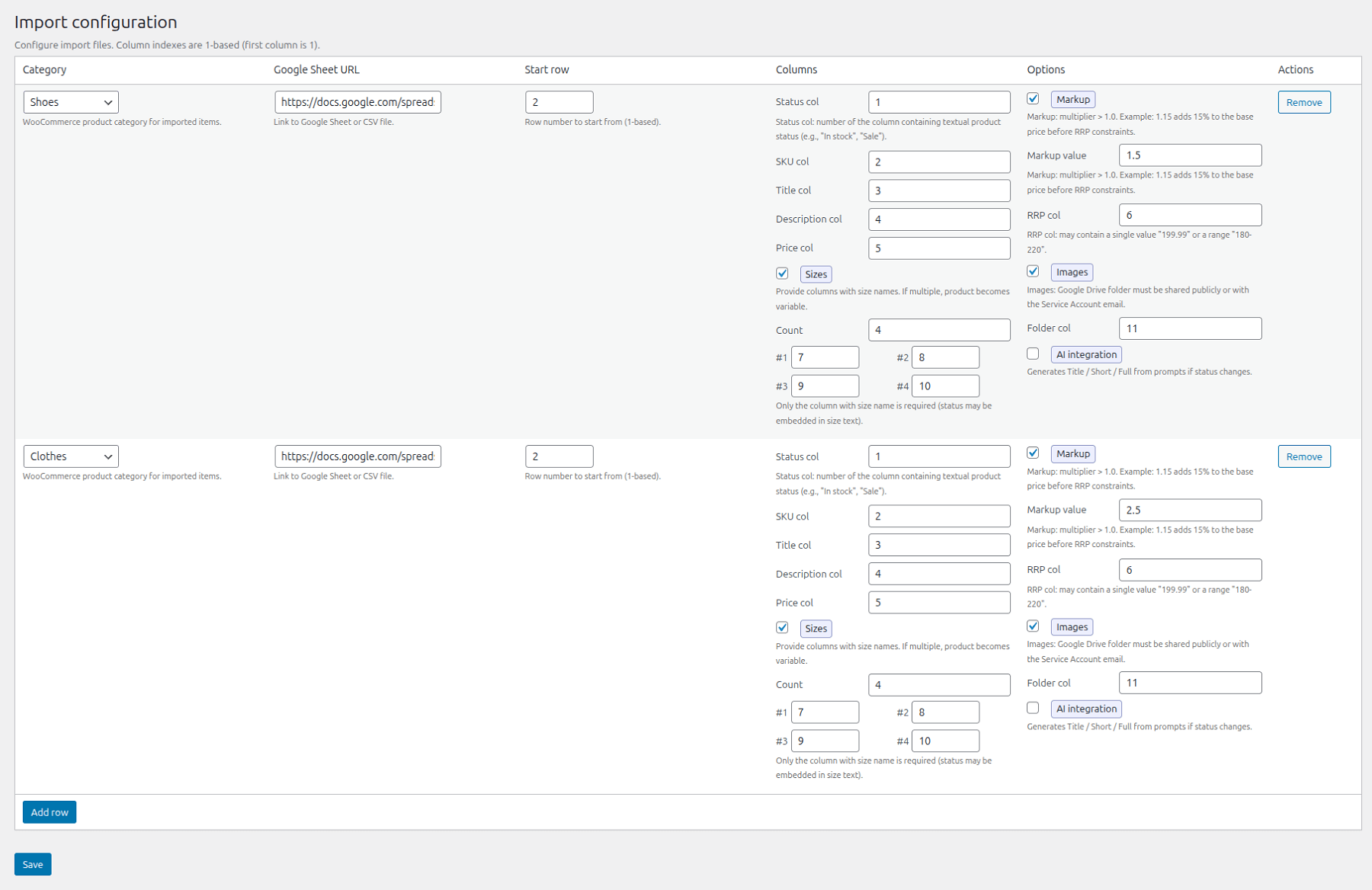
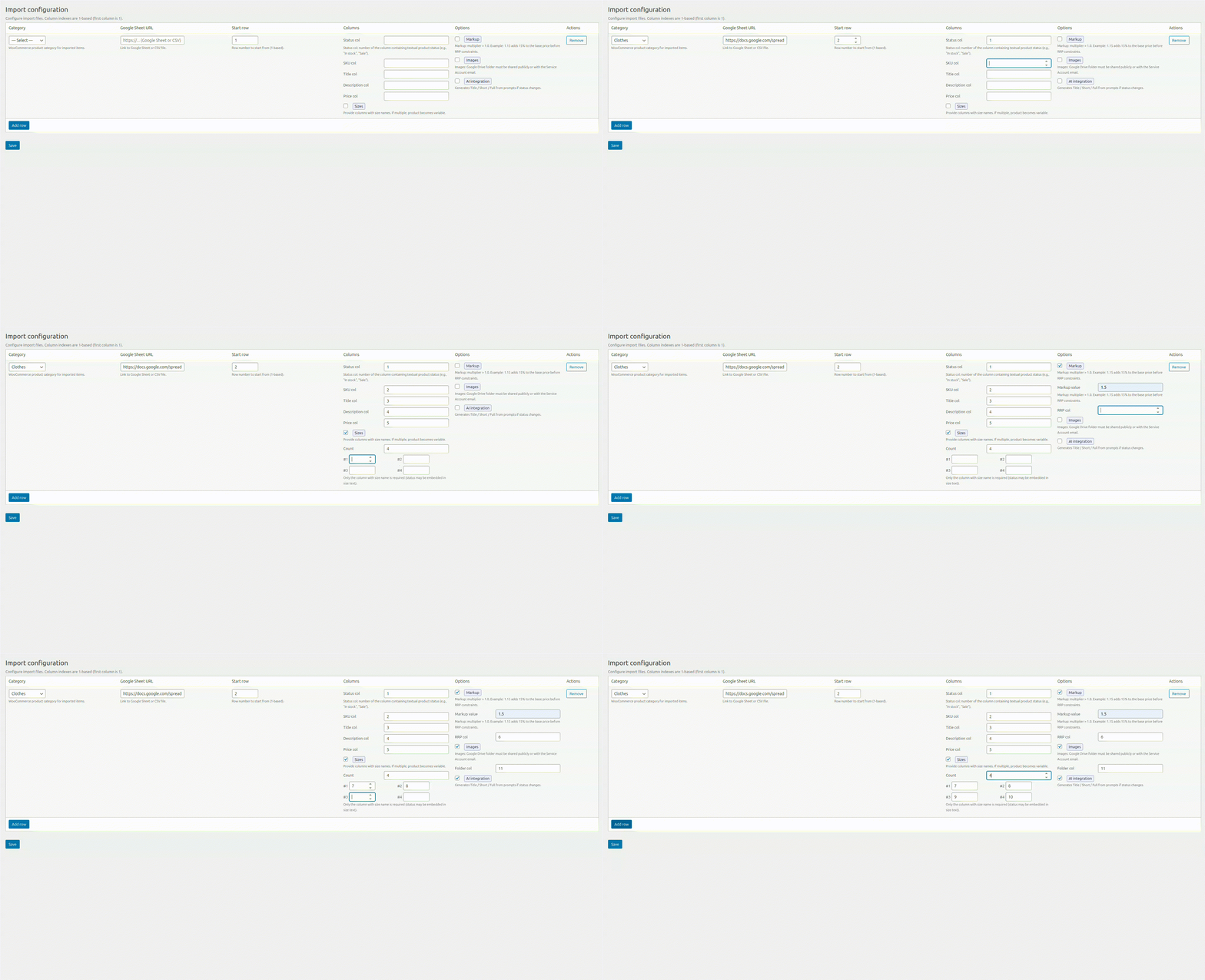
Open the plugin settings in WordPress and select the WooCommerce category where the products should be imported.
Next, enter the Google Sheets link and specify the row where the import should begin.
This allows you to work with a spreadsheet that contains column headings or other information above the actual product data.
Step 3. Map Google Sheets Columns to WooCommerce Fields
The next step is to match the spreadsheet columns with the appropriate WooCommerce fields.
For example, you can connect the SKU column to the WooCommerce SKU field, the product name column to the product title, and the price column to the corresponding price field.
The same approach applies to images, specifications, and other product details.
If you’re importing variable products, you can also configure attributes such as sizes and colors, along with the information required to create variations.
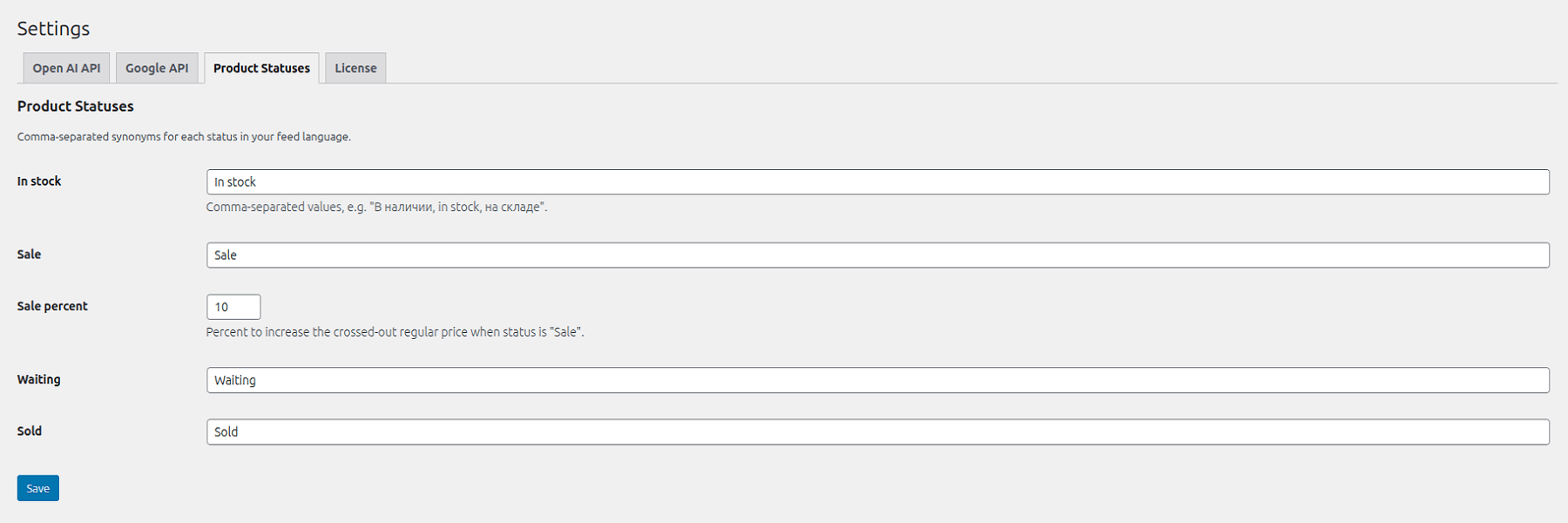
The plugin also provides additional settings for pricing rules and image handling.
Step 4. Preview Products Before Importing
Before starting the import, use the product preview feature.
It allows you to check the product information from your selected source and confirm that the field mapping is correct.
This is particularly useful when importing products for the first time or working with a new supplier spreadsheet.
Checking the data before importing can help you identify missing information or incorrect column mappings.
Step 5. Run the WooCommerce Product Import
Once the settings are ready, start the import.
The plugin reads the product information from Google Sheets and transfers it to WooCommerce according to your configuration.
You can follow the process in the import log, which displays information about processed rows, product updates, and errors.
After the import finishes, open the WooCommerce product catalog and review several imported products.
Check that names, prices, attributes, images, and other fields have been transferred correctly.
Import Simple and Variable WooCommerce Products
WooCommerce supports different product types, and the plugin can work with both simple and variable products.
Simple products are individual products without selectable variations. For example, a travel bag available in one size and color.
Variable products have different options, such as clothing available in several sizes and colors.
When importing variable products, you can configure the necessary attributes and variation information in Google Sheets.
For example, if you sell T-shirts in different sizes and colors, the spreadsheet can contain the relevant product details and attributes needed for the WooCommerce variations.
This makes the plugin useful for stores selling clothing, accessories, and other products with multiple options.
How to Bulk Update WooCommerce Prices and Stock from Google Sheets
Importing products is only part of managing an online store. Keeping existing product information up to date is equally important.
Let’s say your supplier sends an updated price list or several products are no longer available.
Instead of editing each product manually, you can update the relevant values in Google Sheets and run the synchronization again.
When processing existing products, the plugin can identify them by SKU, ID, or another configured identifier.
This allows it to update existing listings rather than creating duplicate products.
You can also choose which product fields should be updated.
For example, if only prices and stock quantities have changed, you can update those fields without replacing existing descriptions, images, or other product information.
Automatic WooCommerce Product Updates
In the Free version, product updates can be started manually.
The PRO version allows you to schedule automatic updates.
This is useful for online stores with frequently changing prices, stock levels, or supplier catalogs.
Instead of repeatedly updating each product in WordPress, you can maintain the information in Google Sheets and use scheduled synchronization to keep your WooCommerce catalog current.
Generate WooCommerce Product Descriptions with AI
In addition to importing and updating products, the plugin includes an AI-powered product description generator. This feature is particularly useful when your spreadsheet contains product names and specifications but doesn’t include complete descriptions.
For example, a supplier may provide hundreds of products with basic information such as materials, sizes, colors, and technical characteristics. Writing a separate description for each product manually can take considerable time. With the plugin’s OpenAI integration, you can generate WooCommerce product descriptions with AI using information from Google Sheets. The generated content can be based on the product name, characteristics, and other available details. You can also customize how the descriptions are written.
How to Set Up AI Product Description Generation
To use AI generation, open the OpenAI settings in the plugin. Enter your OpenAI API key and select the AI model you want to use. You’ll need your own OpenAI API key, and API usage is billed separately. Next, configure the AI prompt. A prompt is an instruction that tells AI what kind of description to generate.
For example, you can ask AI to write a clear product description in English, highlight the main product benefits, include important specifications, and use a professional but easy-to-understand writing style. You can also specify the desired structure, length, and information to emphasize.
After saving the settings, enable AI description generation in the product import configuration.
The plugin can then generate descriptions while importing product information into WooCommerce.
Generate WooCommerce Product Descriptions in Different Languages
If your online store sells products in different countries, you may need descriptions in multiple languages. The plugin allows you to specify the language in the AI prompt.
For example, you can generate product descriptions in English, Spanish, German, or another language required for your target market. You can also adjust the tone and structure of the text depending on the products and audience.
For technical equipment, you might prefer detailed descriptions focused on specifications and functionality. For clothing or accessories, the descriptions can focus more on materials, design, and practical benefits.
It’s important to note that generating text in different languages doesn’t automatically create separate multilingual product pages. If your website uses WPML, TranslatePress, or another translation solution, language versions must be managed according to your website configuration.
Improve Product Titles and Descriptions for SEO
AI can also help improve existing product titles and organize product information.
For example, supplier catalogs sometimes contain product names that include only a brand and model number, without clearly identifying the product type.
You can configure an AI prompt to create more descriptive titles and include relevant product characteristics in the description.
The prompt can also specify which keywords should be included naturally in the content.
This can help make product pages more informative for customers and easier for search engines to understand.
However, AI-generated descriptions should still be reviewed before publication. Product details must be accurate, and the content should not include unsupported claims or specifications that weren’t provided in the source data.
AI-generated content can support WooCommerce SEO, but it doesn’t replace keyword research or guarantee better search rankings.
Import WooCommerce Product Images from Google Drive
Product images are another important part of WooCommerce catalog management.
The plugin supports importing images using direct image URLs or files stored in Google Drive.
This can be useful when suppliers organize product photographs in Google Drive folders.
Instead of uploading every image manually, you can include the relevant image references in your Google Sheet and map them to WooCommerce image fields.
Depending on your configuration, access to Google Drive files may require Google API credentials.
This allows product information and image sources to be managed as part of the same import workflow.
WooCommerce Product Import with AI: Free vs. PRO
The WooCommerce Product Import with AI from Sheets plugin is available in two versions: Free and PRO.
| Feature | Free | PRO |
|---|---|---|
| Import products from Google Sheets | Yes | Yes |
| Import simple and variable products | Yes | Yes |
| Unlimited product imports | Yes | Yes |
| Generate AI product descriptions | Yes | Yes |
| Manual product updates | Yes | Yes |
| Multiple Google Sheets connections | No | Yes |
| Scheduled automatic updates | No | Yes |
The Free version allows you to connect one Google Sheet, import an unlimited number of products, generate descriptions with AI, and run product updates manually.
The PRO version supports multiple Google Sheets connections and automatic updates on a schedule.
For example, if your store works with several suppliers, you can connect separate spreadsheets and configure regular synchronization.
You can start with the Free version and upgrade to PRO when your store requires more automation.
Frequently Asked Questions
Can I import WooCommerce products directly from Google Sheets?
Yes. With WooCommerce Product Import with AI from Sheets, you can import product information from Google Sheets into WooCommerce, including names, SKUs, prices, attributes, and images.
Can I bulk update WooCommerce products using Google Sheets?
Yes. The plugin allows you to update existing products using identifiers such as SKU or ID. You can select specific fields to update, including prices and stock levels, without replacing other product information.
Can I import variable products into WooCommerce?
Yes. The plugin supports both simple and variable products. You can configure product attributes such as sizes and colors and provide the information needed to create variations.
How can I generate WooCommerce product descriptions with AI?
You can connect OpenAI to WooCommerce Product Import with AI from Sheets, configure your AI prompt, and enable description generation during product import. The plugin uses the product information in Google Sheets to create descriptions.
Can I generate WooCommerce product descriptions with AI in Google Sheets?
You can use Google Sheets as the source of product data for AI description generation. The plugin reads product names and details from the spreadsheet and generates descriptions for WooCommerce through its OpenAI integration.
Can AI generate WooCommerce product descriptions in multiple languages?
Yes. You can specify the language in the AI prompt and generate descriptions in English, Spanish, German, or other languages. Managing separate multilingual product pages depends on your website configuration.
Is there a free WooCommerce product import plugin with AI?
Yes. The Free version of WooCommerce Product Import with AI from Sheets supports product imports and AI description generation. OpenAI API usage requires a separate API key and is billed independently.
Can WooCommerce products be updated automatically?
Yes. The PRO version supports scheduled product updates from Google Sheets. The Free version allows manual synchronization.
Managing a large WooCommerce product catalog doesn’t have to mean manually creating and updating every product page.
With WooCommerce Product Import with AI from Sheets, you can import simple and variable products, manage product images, and update prices, stock levels, and other information directly from Google Sheets.
The additional AI integration helps generate and improve product descriptions in different languages, making it easier to prepare content for large product catalogs.
Whether you’re importing products for the first time or regularly updating supplier information, the plugin can help reduce repetitive tasks and simplify WooCommerce catalog management.